%20for%20navbar/footer%20logo.%20--%3e%3csvg%20version='1.1'%20xmlns='http://www.w3.org/2000/svg'%20viewBox='61.4%2076.9%20205.2%20174.1'%3e%3cg%20transform='translate(61.4,76.9)%20scale(2.3855)'%3e%3cpath%20d='M69,7%20C69,10.1251958%2070.4336074,12.9155546%2072.6790647,14.7493188%20L67.719258,14.7476636%20L67.719258,73%20L53.7770578,73%20L53.7770578,36.1028037%20L42.1585577,36.1028037%20C42.0110212,41.2616822%2041.0335918,46.0280374%2039.2262695,50.4018692%20C37.4189473,54.7757009%2034.7632901,58.2897196%2031.259298,60.9439252%20C27.7553059,63.5981308%2023.4951892,64.9252336%2018.4789479,64.9252336%20C15.0856081,64.9252336%2011.9688994,64.2336449%209.12882154,62.8504673%20C6.28874373,61.4672897%204.05725402,59.5981308%202.43435241,57.2429907%20C0.811450804,54.8878505%200,52.2523364%200,49.3364486%20C0,43.728972%202.2868159,39.411215%206.86044771,36.3831776%20C11.4340795,33.3551402%2017.8888018,31.8411215%2026.2246146,31.8411215%20L28.2163575,31.8411215%20L28.2163575,17.1495327%20C28.2163575,13.2616822%2027.5708853,10.3084112%2026.2799408,8.28971963%20C24.9889963,6.27102804%2023.2738844,5.26168224%2021.134605,5.26168224%20C19.0690939,5.26168224%2017.4646343,5.99065421%2016.3212264,7.44859813%20C15.1778184,8.90654206%2014.6061145,10.7943925%2014.6061145,13.1121495%20C14.6061145,15.2056075%2015.2515867,16.9813084%2016.5425312,18.4392523%20C17.8334756,19.8971963%2019.3641669,20.6635514%2021.134605,20.7383178%20C18.1838748,23.5046729%2014.9380716,24.8878505%2011.3971954,24.8878505%20C8.74153821,24.8878505%206.52849056,23.953271%204.75805244,22.0841121%20C2.98761432,20.2149533%202.10239526,17.8971963%202.10239526,15.1308411%20C2.10239526,10.6448598%203.90971751,7.1682243%207.524362,4.70093458%20C11.1390065,2.23364486%2015.6757542,1%2021.134605,1%20C24.9705543,1%2028.4929885,1.76635514%2031.7019075,3.29906542%20C34.9108266,4.8317757%2037.4558314,6.94392523%2039.3369219,9.63551402%20C41.2180124,12.3271028%2042.1585577,15.2803738%2042.1585577,18.4953271%20L42.1585577,31.8411215%20L53.7770578,31.8411215%20L53.7770578,14.7476636%20L45.9207387,14.7476636%20L45.9207387,0.710280374%20L71.2262661,0.70907886%20C69.8340595,2.42730587%2069,4.61625042%2069,7%20Z%20M28.2163575,36.1028037%20L26.2246146,36.1028037%20C21.7985193,36.1028037%2018.6449264,37.1682243%2016.7638359,39.2990654%20C14.8827454,41.4299065%2013.9422002,44.5140187%2013.9422002,48.5514019%20C13.9422002,51.6915888%2014.4401359,54.4953271%2015.4360073,56.9626168%20C16.4318788,59.4299065%2018.0732225,60.6635514%2020.3600384,60.6635514%20C22.9419273,60.6635514%2024.896786,59.0747664%2026.2246146,55.8971963%20C27.5524432,52.7196262%2028.2163575,48.5140187%2028.2163575,43.2803738%20L28.2163575,36.1028037%20Z'%20fill='%23000000'/%3e%3ccircle%20cx='79'%20cy='7'%20r='7'%20fill='%23AE8B47'/%3e%3c/g%3e%3c/svg%3e)
BharatX Product
The Dashboard guide
Add clients, connect the GST portal and keep notices, compliance and deadlines in one place.
Before you start
- A client’s 15-digit GSTIN
- API access enabled on their GST portal
- Client available to share an OTP
Get started
Your Home page
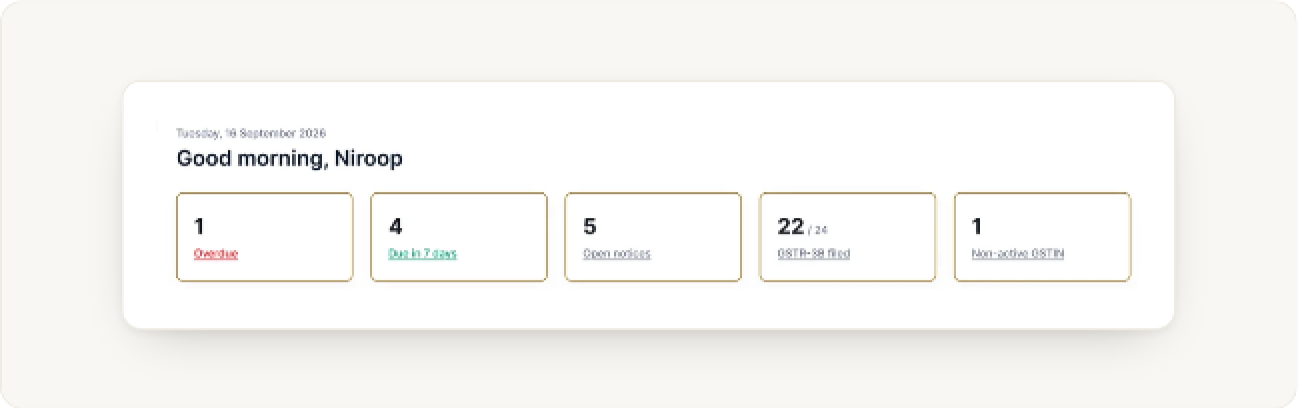
Home is your daily starting point. Under the greeting, five cards count what needs you today: Overdue, Due in 7 days, Open notices, GSTR-3B filed (for example 22 of 24 clients) and Non-active GSTIN.
Each card’s label is a link, so you can jump straight to the list behind the number. The GST selector at the top left shows which domain you are in.
Add a client
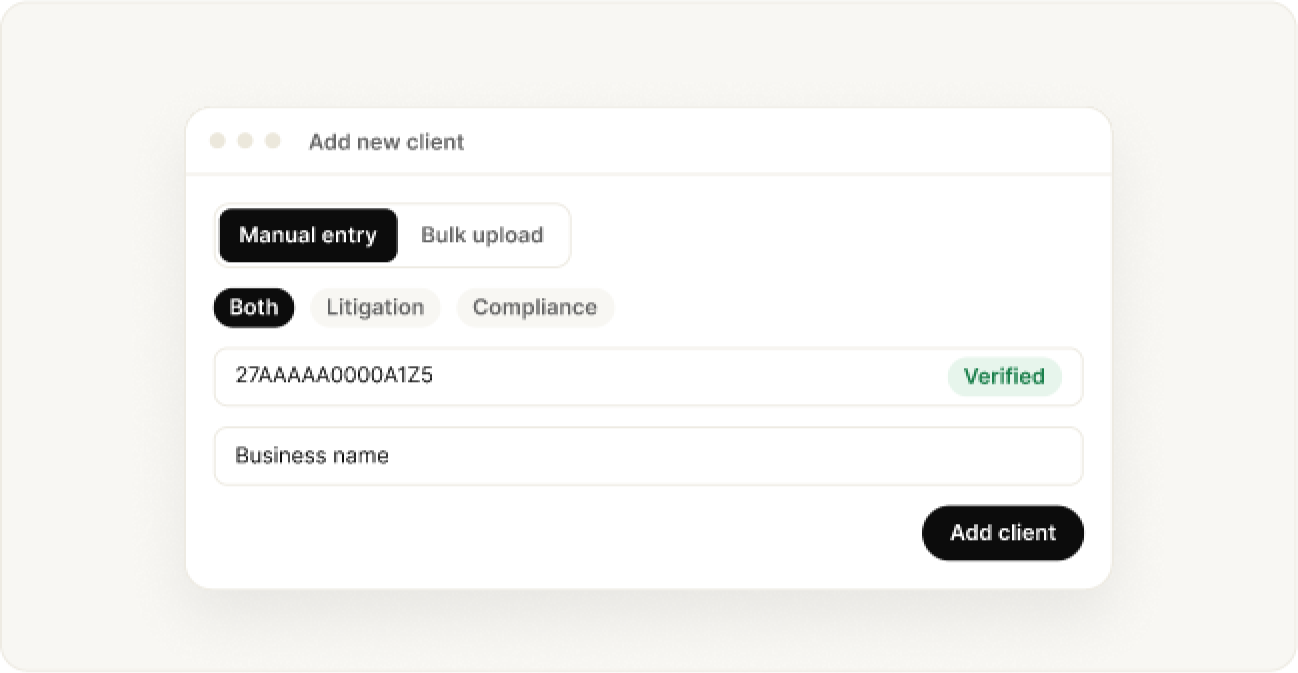
- Open Add New Client and pick Manual Entry or Bulk Upload.
- Choose the client type: Both, Litigation or Compliance.
- Enter the 15-digit GSTIN and verify it, then add the business name.
- For litigation clients, add the portal login details too.
After you add a client, notice details update within 24 hours.
Connect the GST portal with an OTP
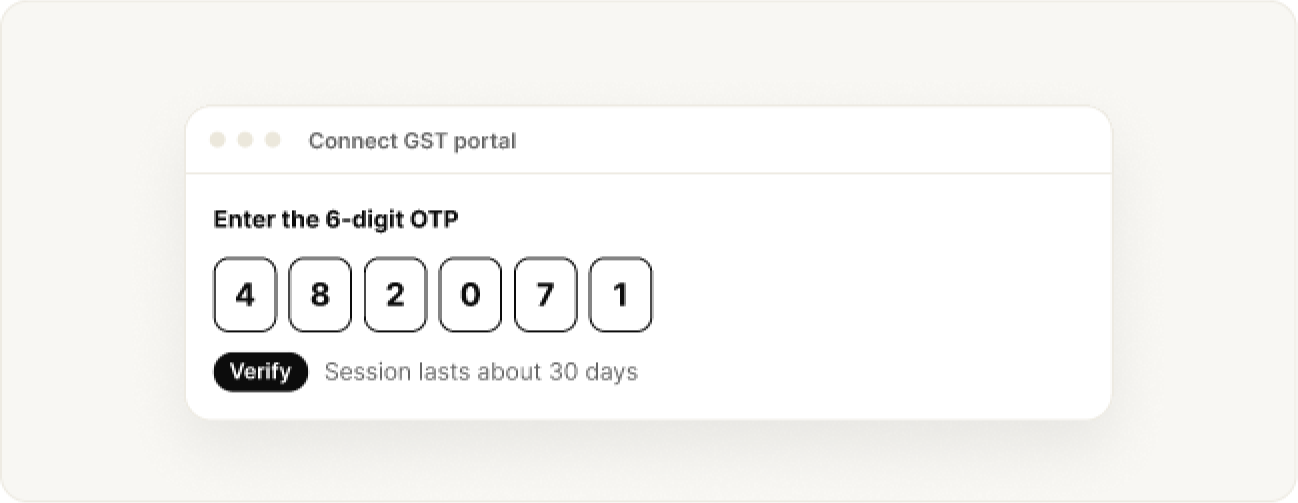
On the Clients page, request an OTP, enter the 6-digit code your client receives, and verify it. The connection lasts about 30 days.
The client must enable API access on the GST portal first, or the OTP step will not work.
Keep the data fresh with Sync
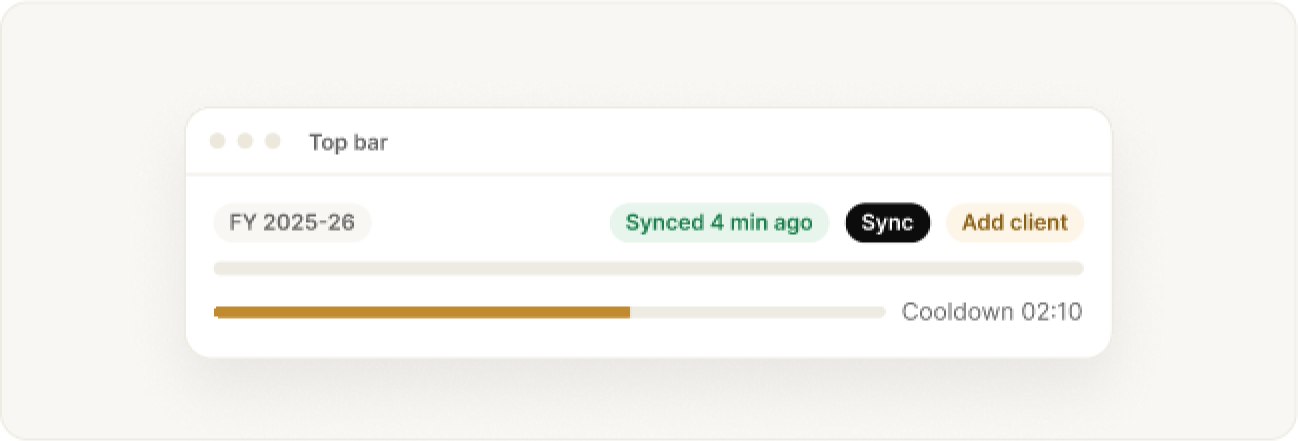
Sync pulls the latest returns, notices and compliance data. A short cooldown follows each sync. Notice data also refreshes on its own about every 24 hours.
Manage your clients
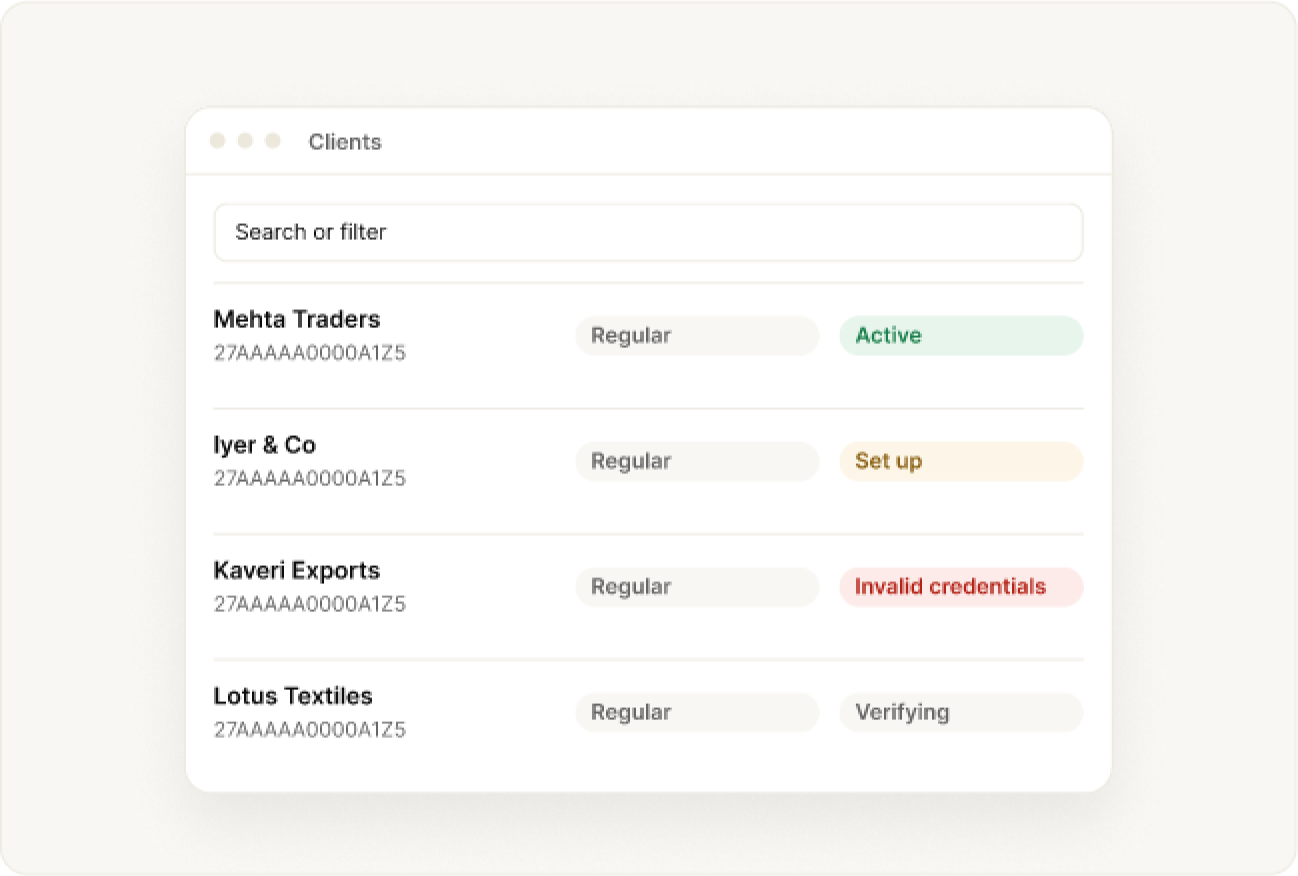
Search and filter the client list. Columns cover GSTIN, trade name, username, status, registration type, notice tracking and actions.
- Notice Tracking shows Set up, Invalid credentials, Active or Verifying.
- Edit a client’s portal credentials, or delete the client.
Open a client
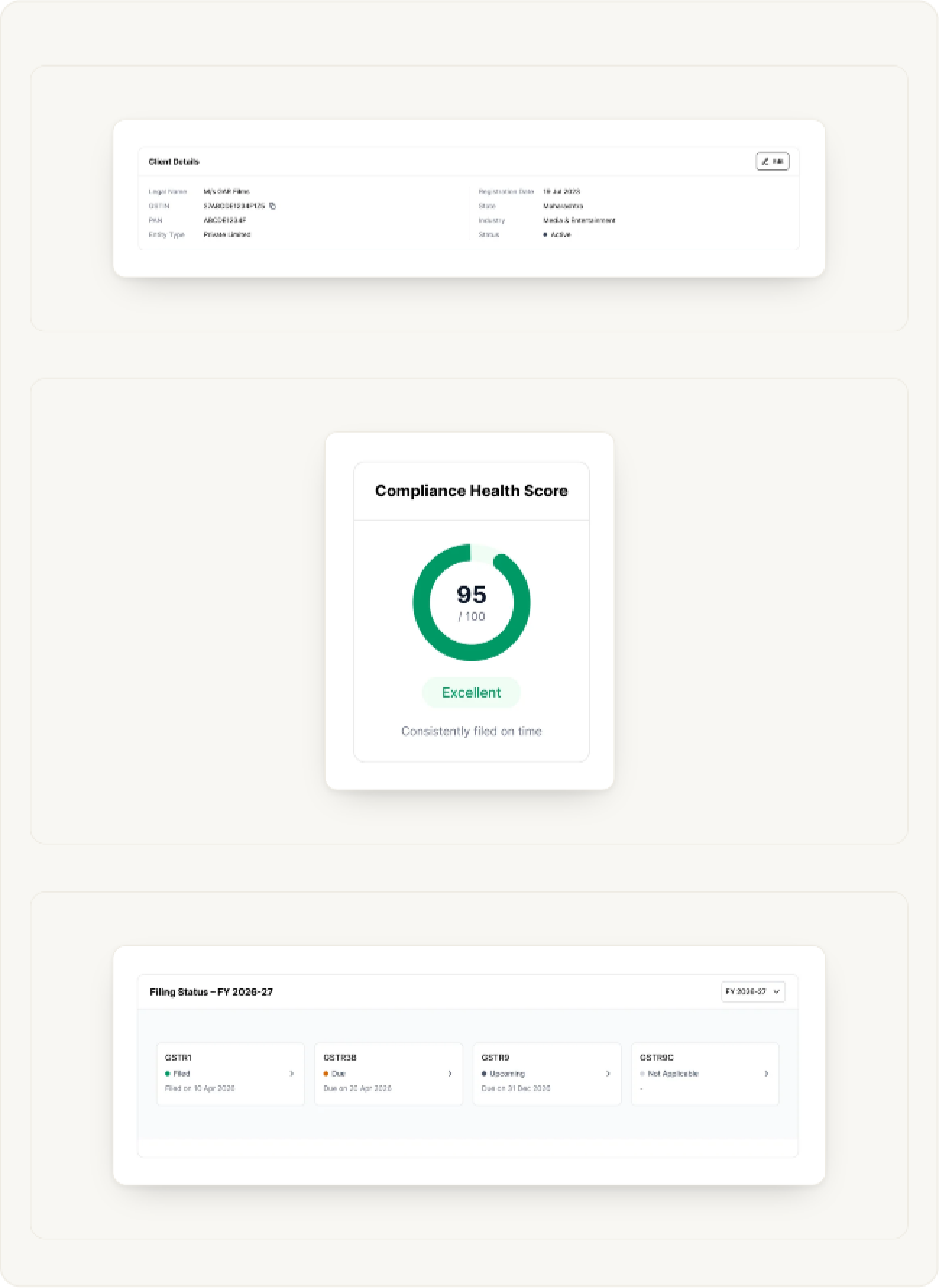
Select a client to open its page. It has three tabs: Overview, Notices and Compliance.
- Client Details shows the legal name, GSTIN (with a copy button), PAN, entity type, registration date, state, industry and status. Use Edit to change them.
- Compliance Health Score gives a score out of 100 with a short label such as Excellent.
- Filing Status shows each return for the year you pick (GSTR1, GSTR3B, GSTR9, GSTR9C) as Filed, Due, Upcoming or Not Applicable, with its date.
Daily use
Work through notices
The Notice Summary on Home counts notices by category, with columns for Due 1d, Due 7d, Open and Orders. Use the icons at the top right of the card to download it or open it full size.
In the full list, notices are grouped by client with reference ID, type, description, dates, status and actions. You can set a status by hand, or revert it to the calculated one.
- Download the PDF or view case details.
- Send to Analyser to start drafting a reply.
- Add a notice manually if it is not listed.
Track compliance
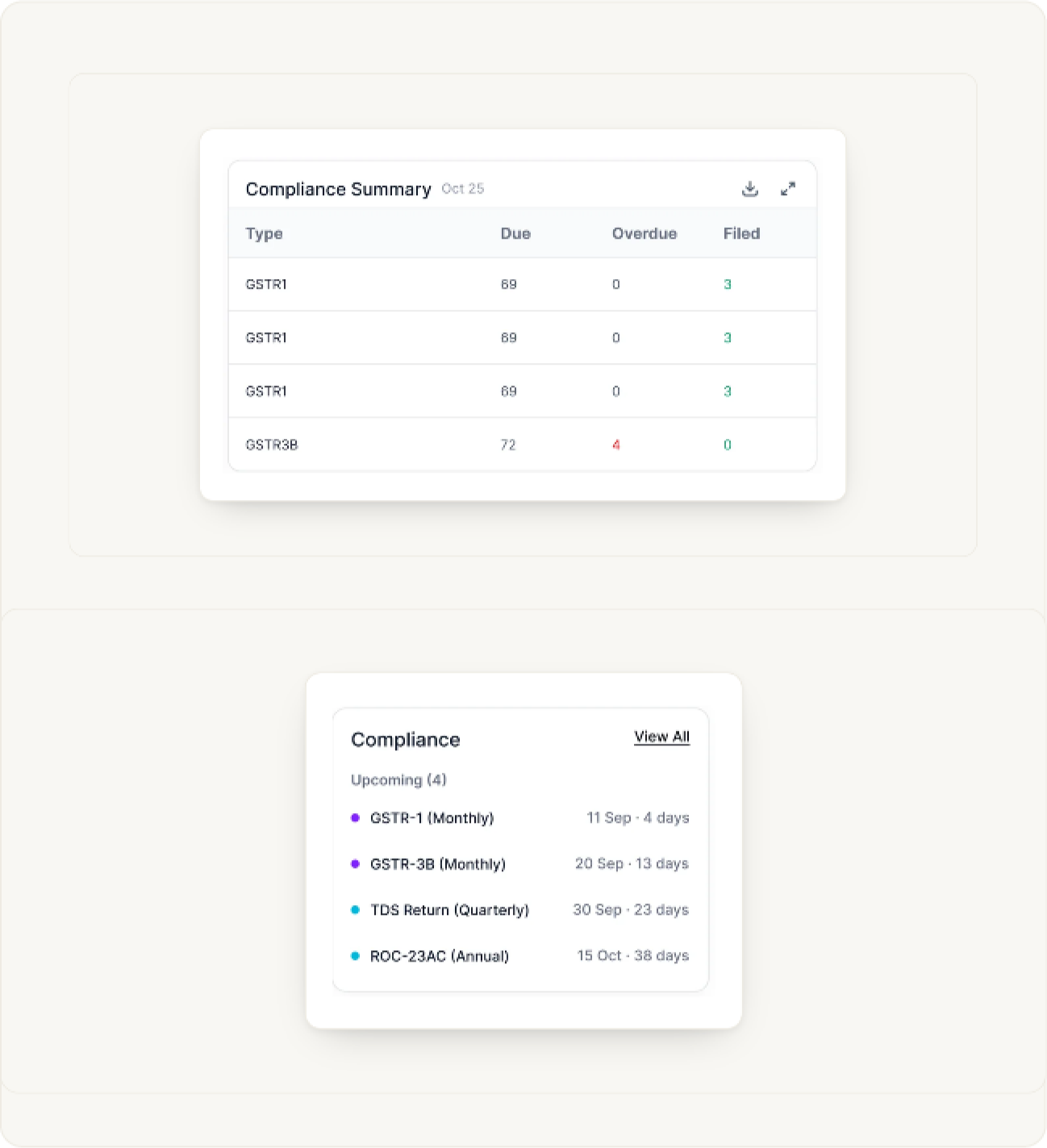
The Compliance Summary lists each return type with how many are Due, Overdue and Filed. Overdue counts show in red and filed counts in green.
On the right, Compliance lists your next due dates with the days left, for example GSTR-3B (Monthly) in 13 days. View All opens the full list.
You can mark a period as filed manually. That override is replaced the next time returns data refreshes.
Recommended actions
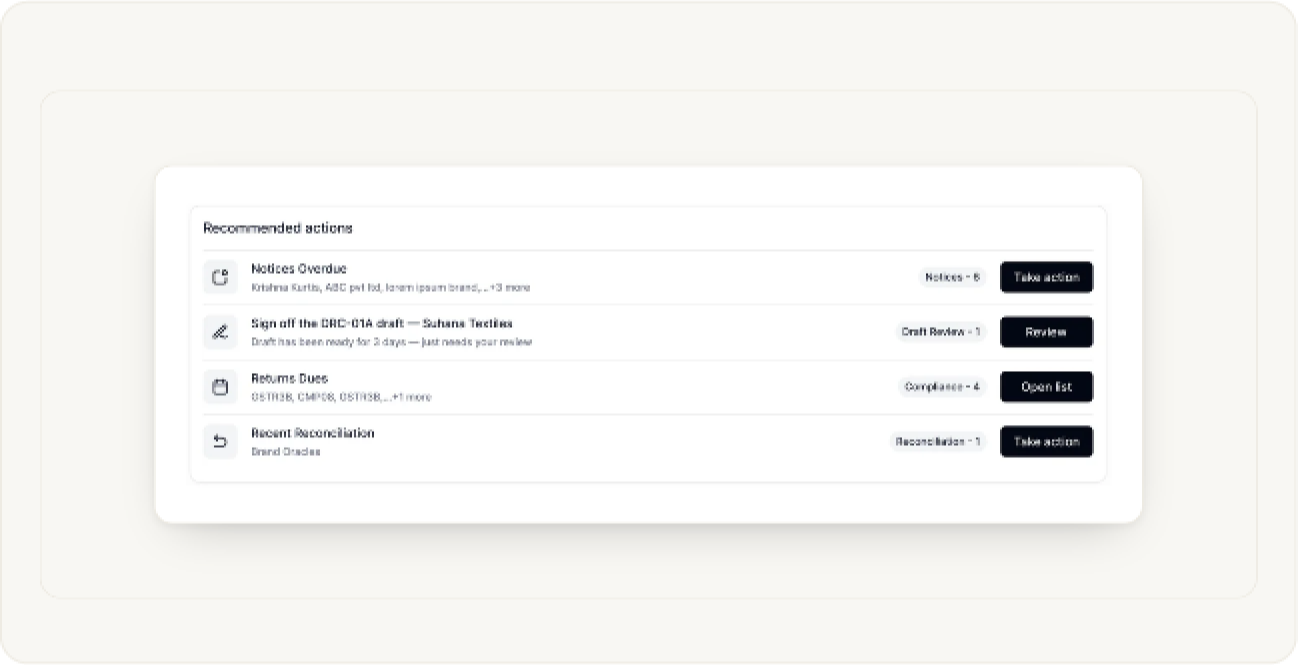
Right below the cards, Recommended actions puts the most urgent work first. Each row has a short description, a count chip and one button:
- Notices Overdue with Take action.
- A draft waiting for your sign-off, with Review.
- Returns Dues with Open list.
- Recent Reconciliation with Take action.
Check Client Health
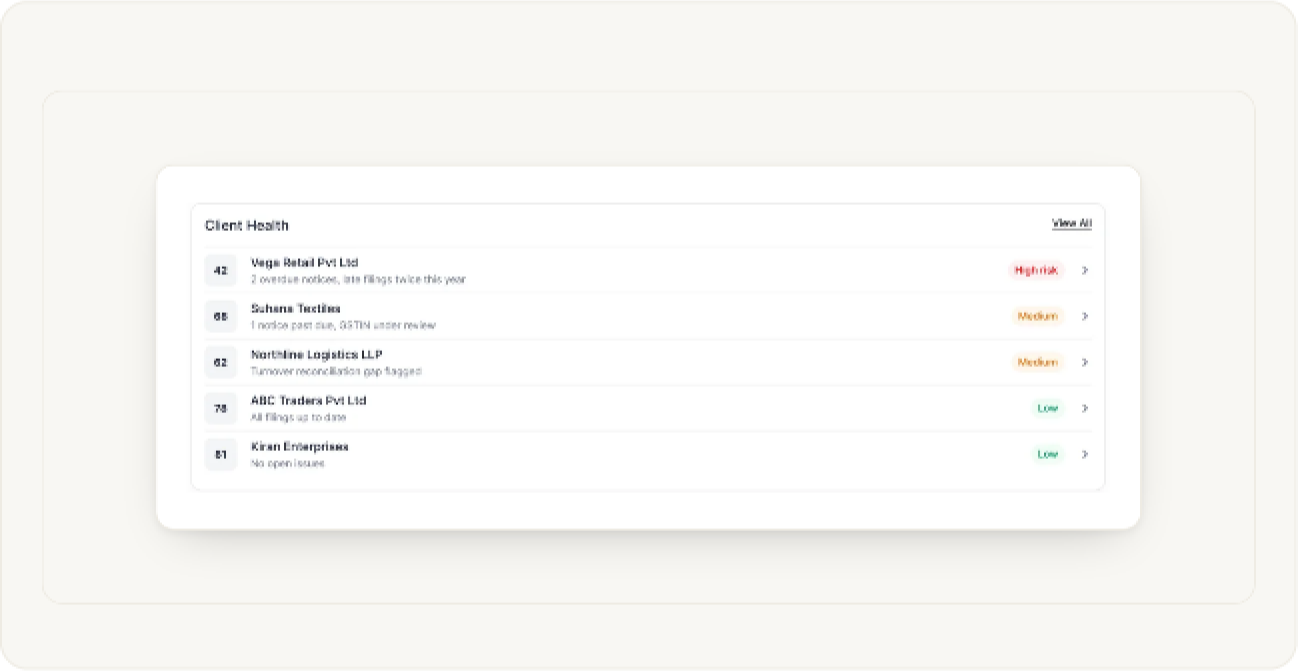
Client Health ranks your clients by score, so the ones that need care stand out. Each row shows the score, the client name, a one-line reason (for example overdue notices or late filings) and a label of High risk, Medium or Low.
Click a row to open that client. View All shows every client.
What’s new this week
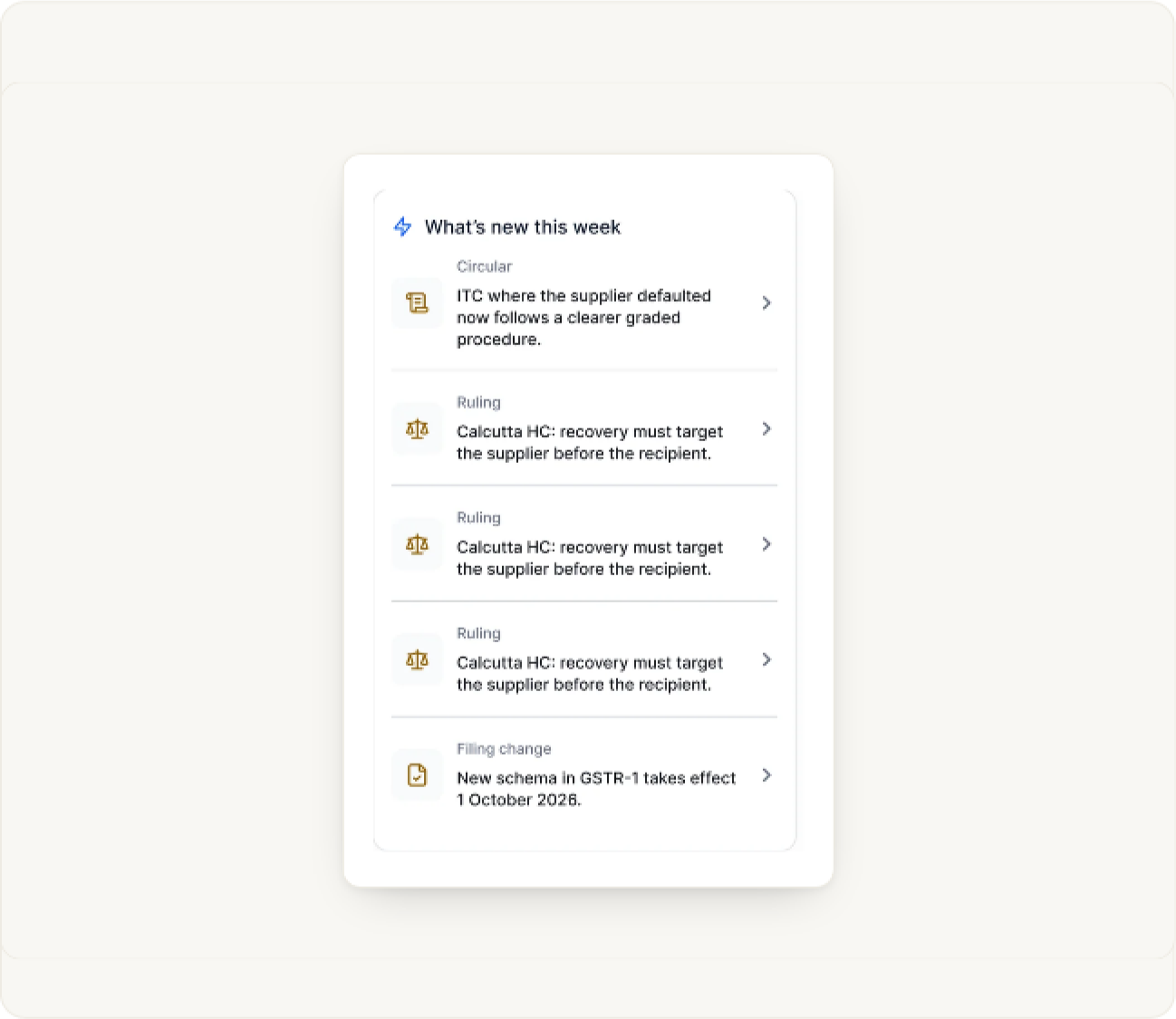
The panel on the right of Home brings new Circulars, Rulings and Filing changes that may affect your clients. Click any item to read it.
Help
When something looks wrong
- Plan limit or client cap reached
- Sync says to wait
- GSTIN will not verify
- Notice tracking shows Invalid credentials
- A notice PDF is missing
- Account mismatch or GST-only feature
Still stuck? Write to the BharatX team with a short description and a screenshot. Include the client’s GSTIN, and never send their portal password.
Was this guide helpful?