%20for%20navbar/footer%20logo.%20--%3e%3csvg%20version='1.1'%20xmlns='http://www.w3.org/2000/svg'%20viewBox='61.4%2076.9%20205.2%20174.1'%3e%3cg%20transform='translate(61.4,76.9)%20scale(2.3855)'%3e%3cpath%20d='M69,7%20C69,10.1251958%2070.4336074,12.9155546%2072.6790647,14.7493188%20L67.719258,14.7476636%20L67.719258,73%20L53.7770578,73%20L53.7770578,36.1028037%20L42.1585577,36.1028037%20C42.0110212,41.2616822%2041.0335918,46.0280374%2039.2262695,50.4018692%20C37.4189473,54.7757009%2034.7632901,58.2897196%2031.259298,60.9439252%20C27.7553059,63.5981308%2023.4951892,64.9252336%2018.4789479,64.9252336%20C15.0856081,64.9252336%2011.9688994,64.2336449%209.12882154,62.8504673%20C6.28874373,61.4672897%204.05725402,59.5981308%202.43435241,57.2429907%20C0.811450804,54.8878505%200,52.2523364%200,49.3364486%20C0,43.728972%202.2868159,39.411215%206.86044771,36.3831776%20C11.4340795,33.3551402%2017.8888018,31.8411215%2026.2246146,31.8411215%20L28.2163575,31.8411215%20L28.2163575,17.1495327%20C28.2163575,13.2616822%2027.5708853,10.3084112%2026.2799408,8.28971963%20C24.9889963,6.27102804%2023.2738844,5.26168224%2021.134605,5.26168224%20C19.0690939,5.26168224%2017.4646343,5.99065421%2016.3212264,7.44859813%20C15.1778184,8.90654206%2014.6061145,10.7943925%2014.6061145,13.1121495%20C14.6061145,15.2056075%2015.2515867,16.9813084%2016.5425312,18.4392523%20C17.8334756,19.8971963%2019.3641669,20.6635514%2021.134605,20.7383178%20C18.1838748,23.5046729%2014.9380716,24.8878505%2011.3971954,24.8878505%20C8.74153821,24.8878505%206.52849056,23.953271%204.75805244,22.0841121%20C2.98761432,20.2149533%202.10239526,17.8971963%202.10239526,15.1308411%20C2.10239526,10.6448598%203.90971751,7.1682243%207.524362,4.70093458%20C11.1390065,2.23364486%2015.6757542,1%2021.134605,1%20C24.9705543,1%2028.4929885,1.76635514%2031.7019075,3.29906542%20C34.9108266,4.8317757%2037.4558314,6.94392523%2039.3369219,9.63551402%20C41.2180124,12.3271028%2042.1585577,15.2803738%2042.1585577,18.4953271%20L42.1585577,31.8411215%20L53.7770578,31.8411215%20L53.7770578,14.7476636%20L45.9207387,14.7476636%20L45.9207387,0.710280374%20L71.2262661,0.70907886%20C69.8340595,2.42730587%2069,4.61625042%2069,7%20Z%20M28.2163575,36.1028037%20L26.2246146,36.1028037%20C21.7985193,36.1028037%2018.6449264,37.1682243%2016.7638359,39.2990654%20C14.8827454,41.4299065%2013.9422002,44.5140187%2013.9422002,48.5514019%20C13.9422002,51.6915888%2014.4401359,54.4953271%2015.4360073,56.9626168%20C16.4318788,59.4299065%2018.0732225,60.6635514%2020.3600384,60.6635514%20C22.9419273,60.6635514%2024.896786,59.0747664%2026.2246146,55.8971963%20C27.5524432,52.7196262%2028.2163575,48.5140187%2028.2163575,43.2803738%20L28.2163575,36.1028037%20Z'%20fill='%23000000'/%3e%3ccircle%20cx='79'%20cy='7'%20r='7'%20fill='%23AE8B47'/%3e%3c/g%3e%3c/svg%3e)
BharatX Product
The Research guide
Ask GST and Income-Tax questions in plain language and get answers with the sources cited.
Before you start
- No upload needed
- GST and Income Tax supported
- To reply to a notice, use the Analyser
Ask
Ask a question
Open Research from the left sidebar, or press New Research for a fresh thread.
- Type in the box. Enter sends, Shift + Enter adds a new line.
- Use the paperclip to attach files, or the mic to dictate.
- When you attach files, they are listed above the answer as Answering with your files.
Choose GST or Income Tax
The GST selector at the top left of the header sets the domain for the whole app. Income Tax may show a Soon badge until your account has access.
Each chat is locked to the domain it started in. Start a New Research thread to ask in the other one.
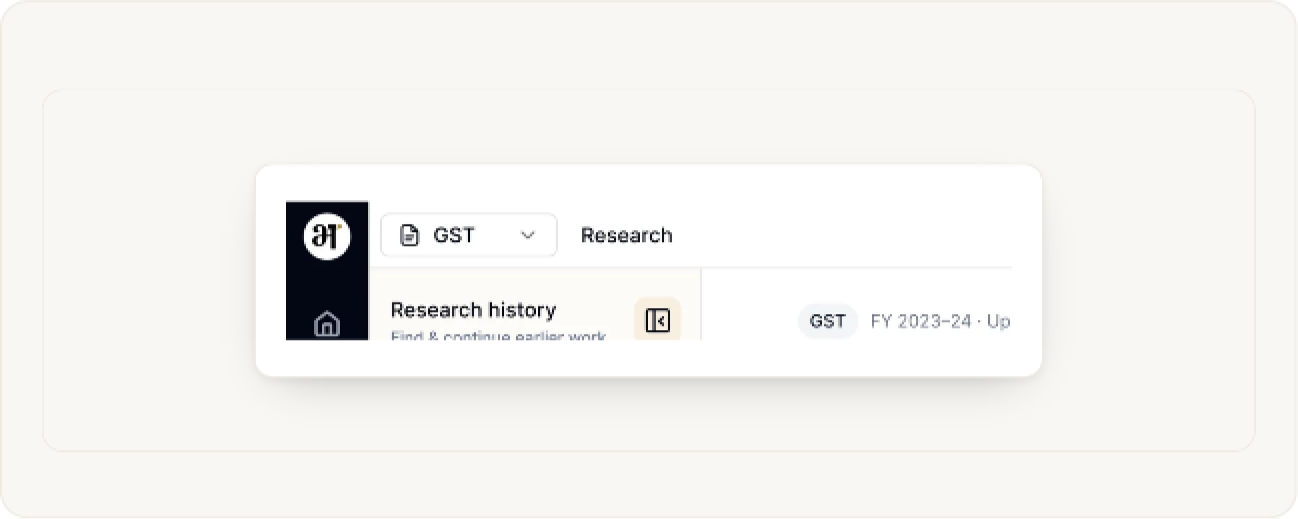
Read the answer
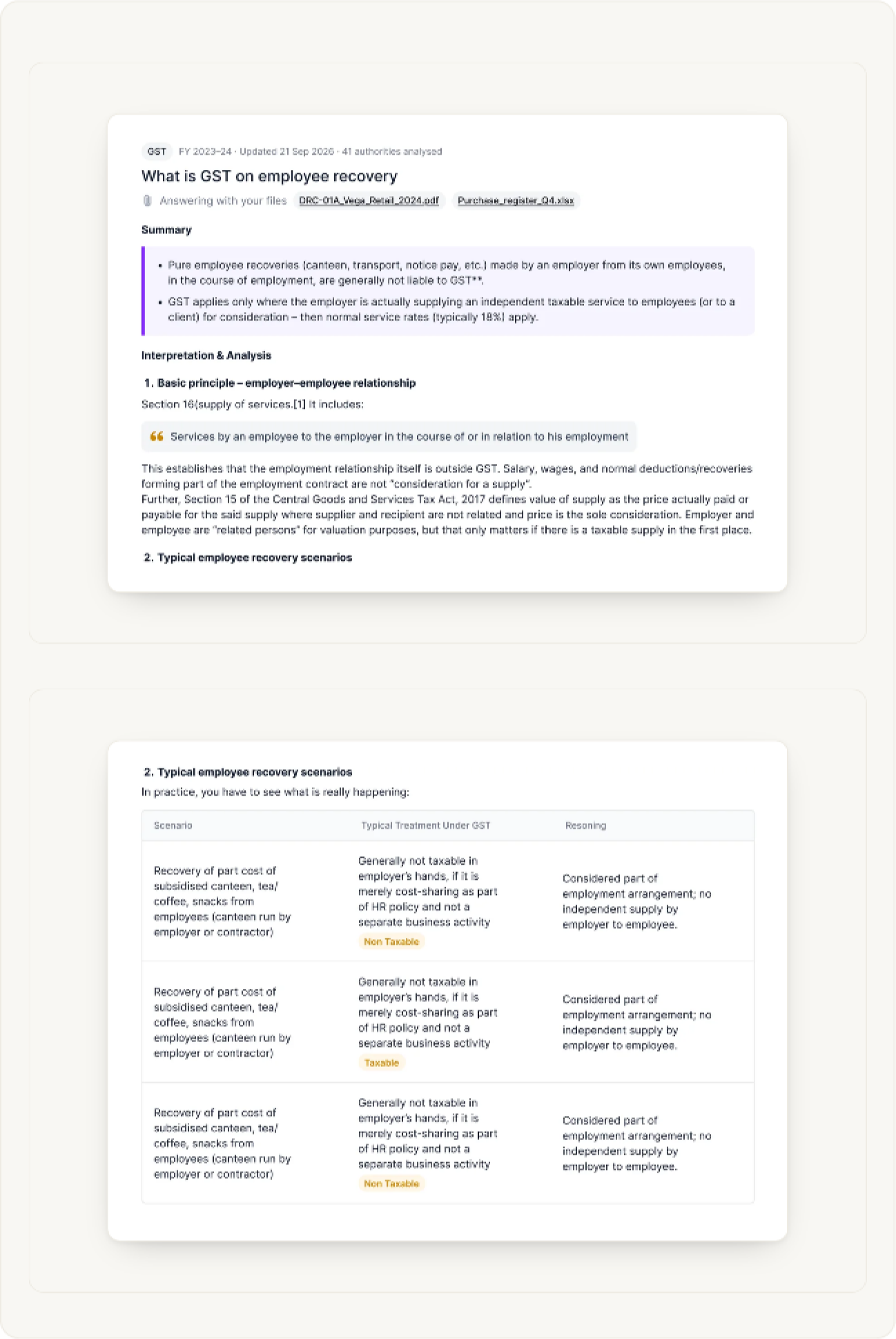
Each answer opens with a header: the domain, the financial year, when it was updated and how many authorities were analysed. Below it you get:
- A Summary in a highlighted box.
- Interpretation & Analysis, with numbered sections, quotes from the law and tables where a comparison helps.
- A Practical approach section with steps you can follow.
Check the sources
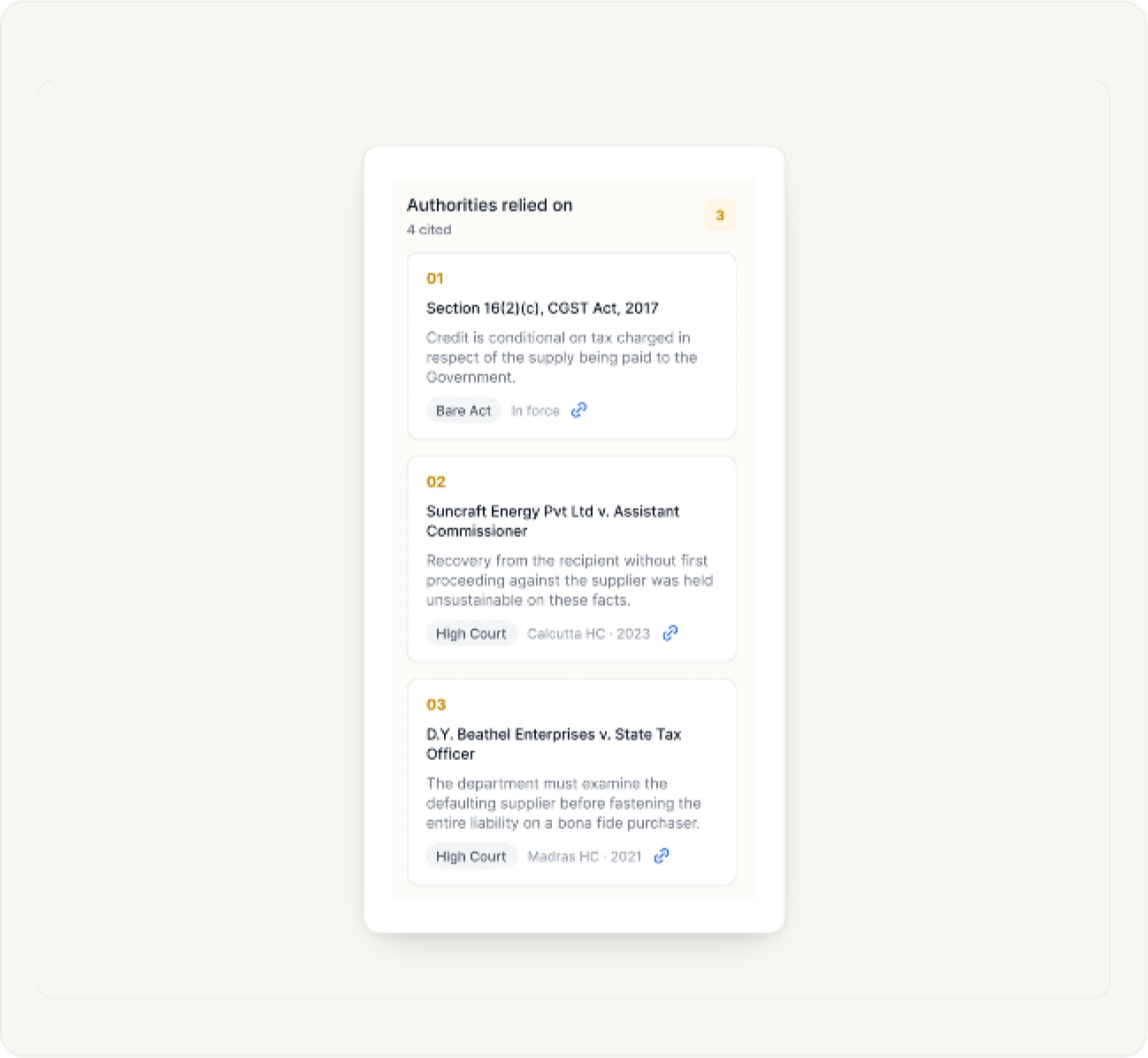
The panel on the right, Authorities relied on, lists what the answer is built on. Each card is numbered and shows what the authority says, its type (Bare Act, High Court and so on) and, where it applies, its status such as In force.
Use the link icon to open the source.
Keep the conversation going
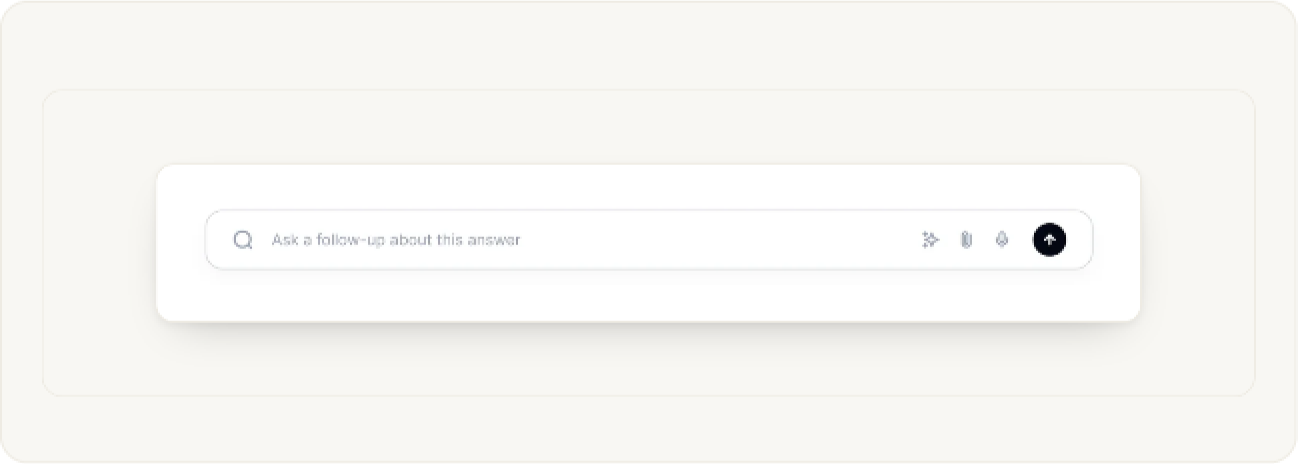
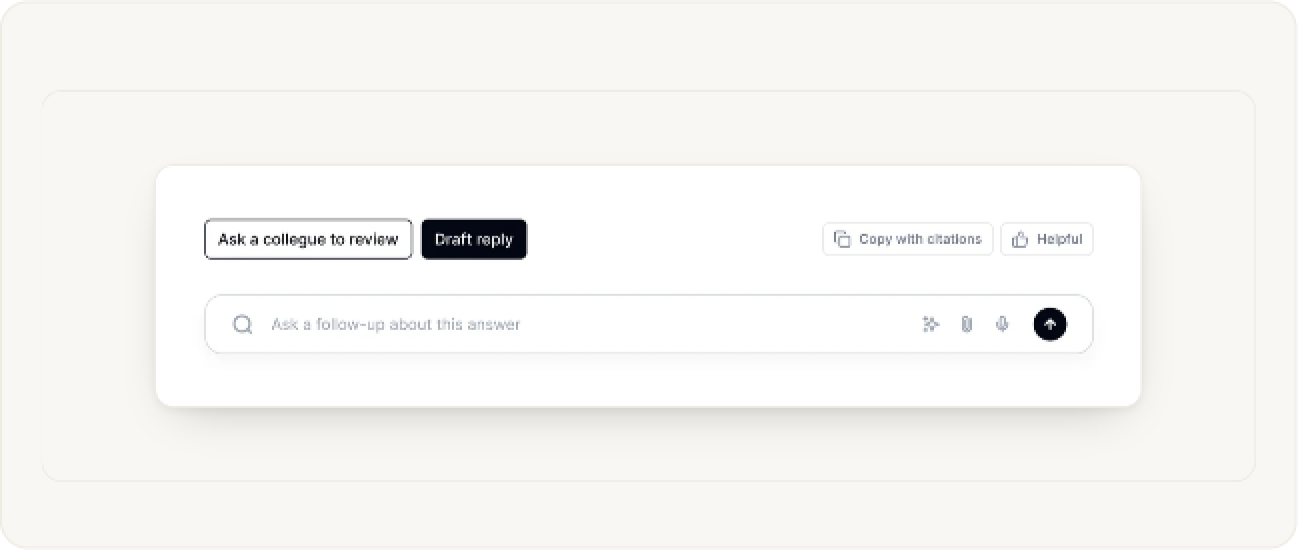
The box under the answer says Ask a follow-up about this answer. Follow-ups stay in the same thread, so you can narrow an answer without repeating the background.
Copy, review or draft from an answer
Under each answer you will find:
- Ask a colleague to review to send it to someone on your team.
- Draft reply to turn the answer into a reply.
- Copy with citations, so the sources travel with the text.
- Helpful to tell us the answer worked.
Manage
Find and manage past research
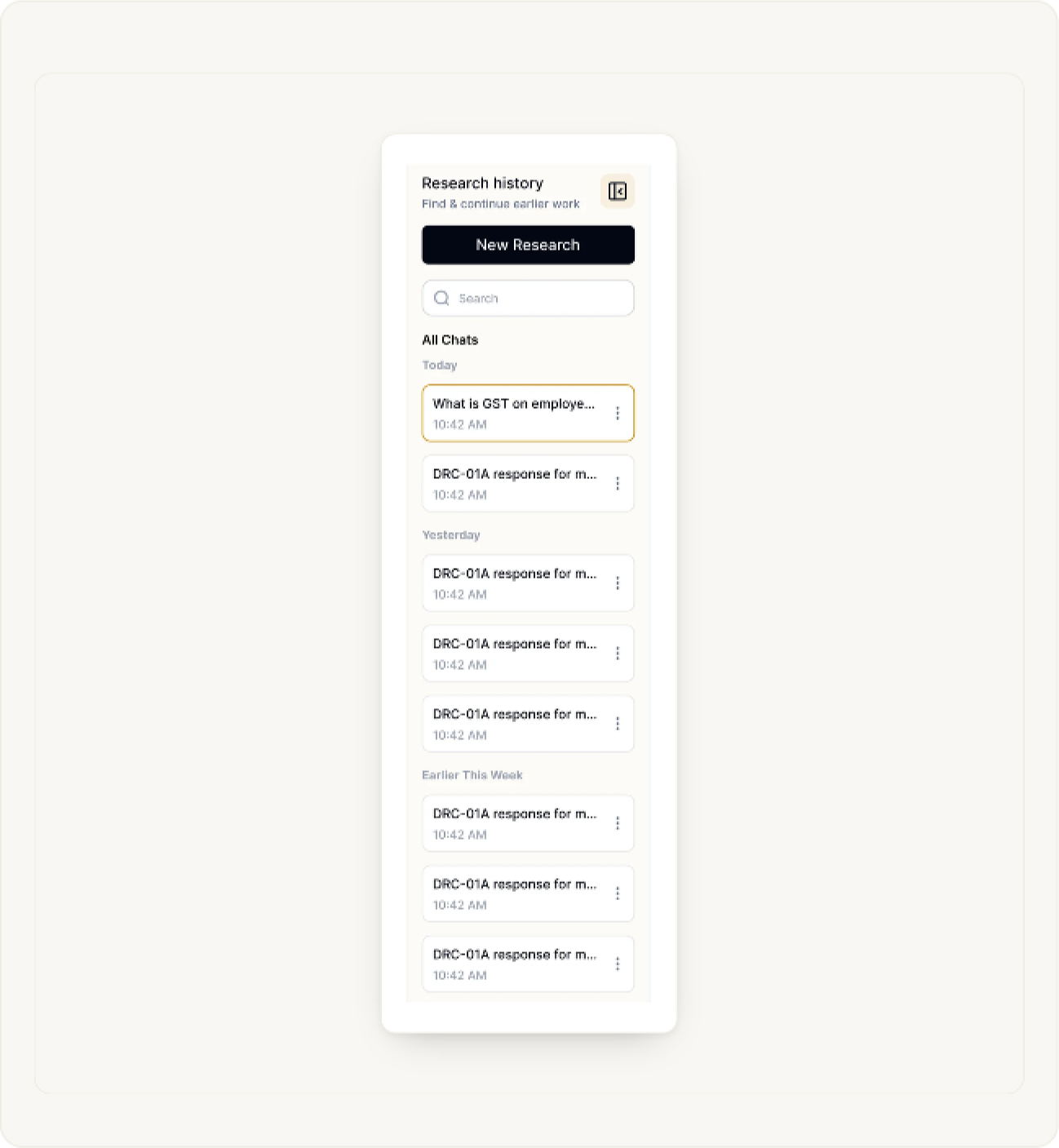
The left panel, Research history, lists earlier threads under All Chats, grouped by Today, Yesterday and Earlier This Week. Search them, or open one to continue where you left off. Each thread’s ⋮ menu has more options.
Use the button at the top of the panel to collapse it when you want more room.
Organise chats in a Client Workspace
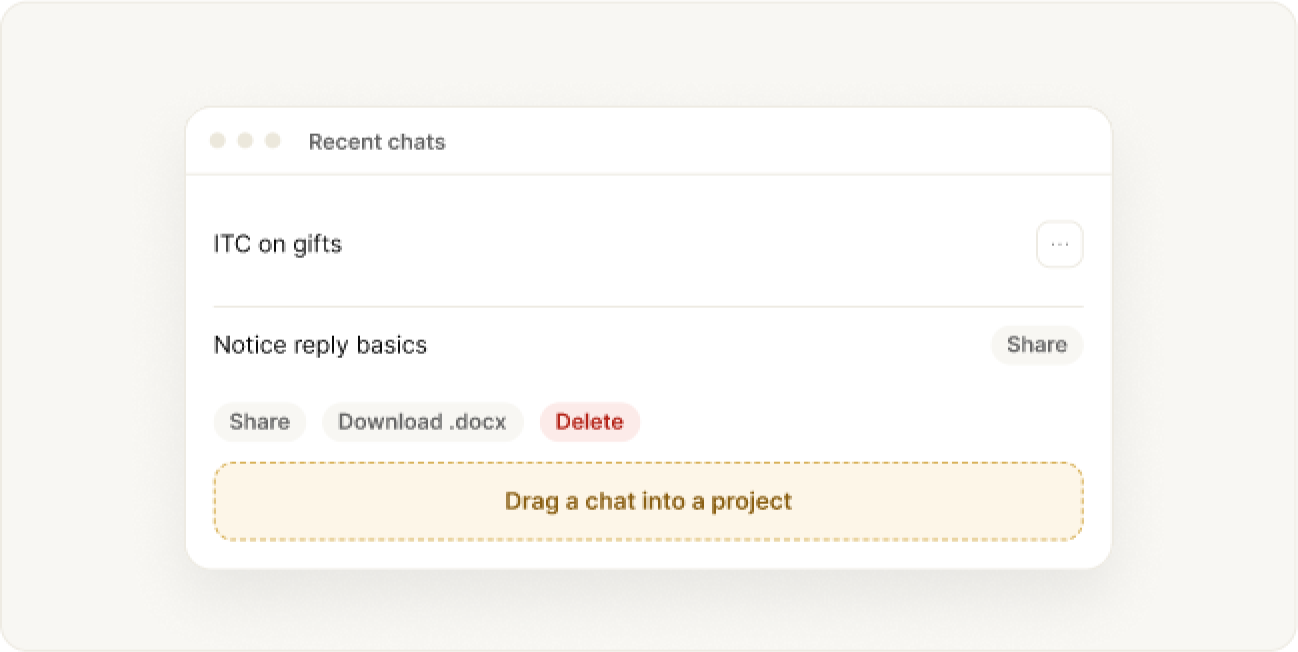
If your plan includes it, Client Workspace lets you group chats into projects, each with its own New Chat. Drag a chat into a project to file it.
Help
When something looks wrong
- “Research limit reached”
- “Research isn’t included in your plan”
- “This conversation is on a different account”
- A red error on an answer
- The other domain is greyed out
Still stuck? Write to the BharatX team with a short description and a screenshot.
Was this guide helpful?